
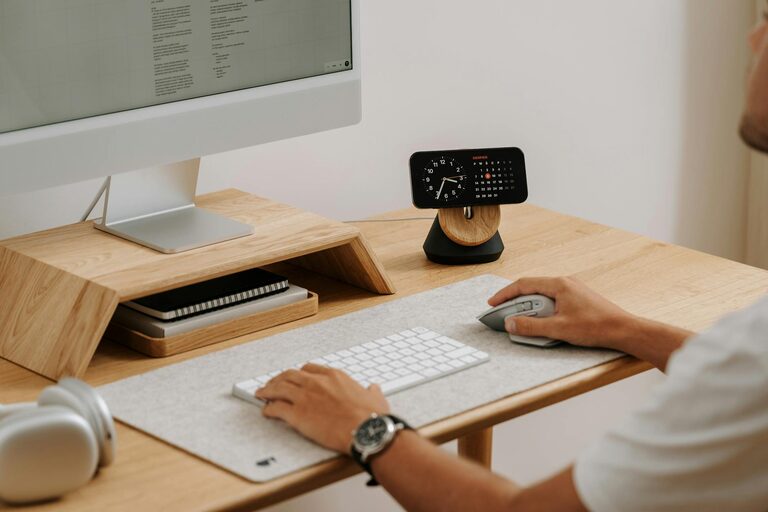
Keeping your computer files organized can feel like a daunting task, especially when you have countless documents, photos, and downloads scattered across your desktop and folders. However, a well-organized file system not only saves you time but can also reduce stress and make your digital workspace more efficient. In this post, we’ll explore practical tips to help you organize your computer files in a clear, manageable way.
Why Organizing Files Matters
Before diving into how to organize your files, it helps to understand why it’s important. When your files are neatly arranged:
– You spend less time searching for documents.
– You avoid duplicate copies that waste storage space.
– It’s easier to back up important files regularly.
– Your computer runs more smoothly with less clutter.
– You can work more productively with a clear digital space.
Now, let’s look at some strategies to get your files in order.
Start with a Simple Folder Structure
The foundation of good file organization is a clear folder hierarchy. Here’s how to create one:
1. Identify Major Categories
Think about the main kinds of files you work with. Common categories include:
– Work or School Documents
– Personal Files
– Photos and Videos
– Downloads
– Projects or Clients (if relevant)
Each category becomes a main folder.
2. Use Subfolders for Granularity
Within each main folder, create subfolders to further sort your files. For example, under “Work Documents,” you might have:
– Reports
– Presentations
– Meeting Notes
This approach makes it easier to find specific files without sifting through dozens of unrelated documents.
3. Avoid Overly Deep Nesting
While subfolders help with organization, don’t create too many levels of folders. Three to four levels deep is usually enough to keep things manageable.
Name Files and Folders Consistently
Clear and consistent naming helps you quickly identify file contents without opening them.
Tips for Naming:
– Use descriptive names like “2024_Tax_Return” instead of generic ones like “Document1.”
– Include dates in file names when relevant, for example: “Meeting_Notes_2023-11-15.”
– Avoid special characters like * / \ ? % : | ” < > as they can cause issues on some systems.
– Use underscores or dashes instead of spaces to improve readability in some cases.
Regularly Declutter and Delete Unnecessary Files
Organizing isn’t a one-time task. Set aside time every month or quarter to:
– Remove duplicate files.
– Delete outdated documents and installers.
– Clear out your Downloads folder, which can quickly become messy.
A quick cleanup helps prevent your folders from becoming overwhelming again.
Use File Management Tools and Features
Modern operating systems offer built-in tools to aid organization:
File Explorer/Finder Tips
– Use the search bar to locate files quickly.
– Sort files by date, type, or size to find what you need.
– Use tags or color labels (macOS) to group related files visually.
Cloud Storage and Sync
Consider using cloud storage services like Google Drive, Dropbox, or OneDrive. They:
– Allow access to files from multiple devices.
– Provide version history for document recovery.
– Help you share files with others without emailing attachments.
Backup Your Organized Files
Once your files are tidy, protect them by backing up regularly:
– Use an external hard drive or automated backup software.
– Cloud backup services add an extra layer of safety.
– Follow the 3-2-1 backup rule: keep 3 copies of your data, 2 different media types, and 1 copy offsite.
Tips for Maintaining Organization
Good habits keep your digital workspace clean:
– Save new files immediately into the correct folders.
– Avoid saving files directly to the desktop.
– Name files before saving—not afterward.
– Set reminders to declutter your files.
– Use browser and app settings to control default download locations.
Organizing Photos and Media
Photos and videos can become the largest files on your computer. Organize them by:
– Date taken
– Event or trip
– People in photos (some apps offer facial recognition)
Consider using photo management software to tag and sort images easily.
Final Thoughts
Organizing your computer files is not just about neatness; it streamlines your workflow and keeps your digital life less stressful. By setting up a solid folder structure, naming files intelligently, regularly cleaning up, and backing up your data, you’ll enjoy a faster, simpler way to work with your computer.
Start small today — even organizing just your desktop or downloads folder can make a big difference!